Assigning a Financial Account to a Project in PPMS
These step-by-step instructions show how to assign a financial account to a project in PPMS, or request a new account number if one doesn’t exist yet.
Step-by-Step Guide
- Select your project
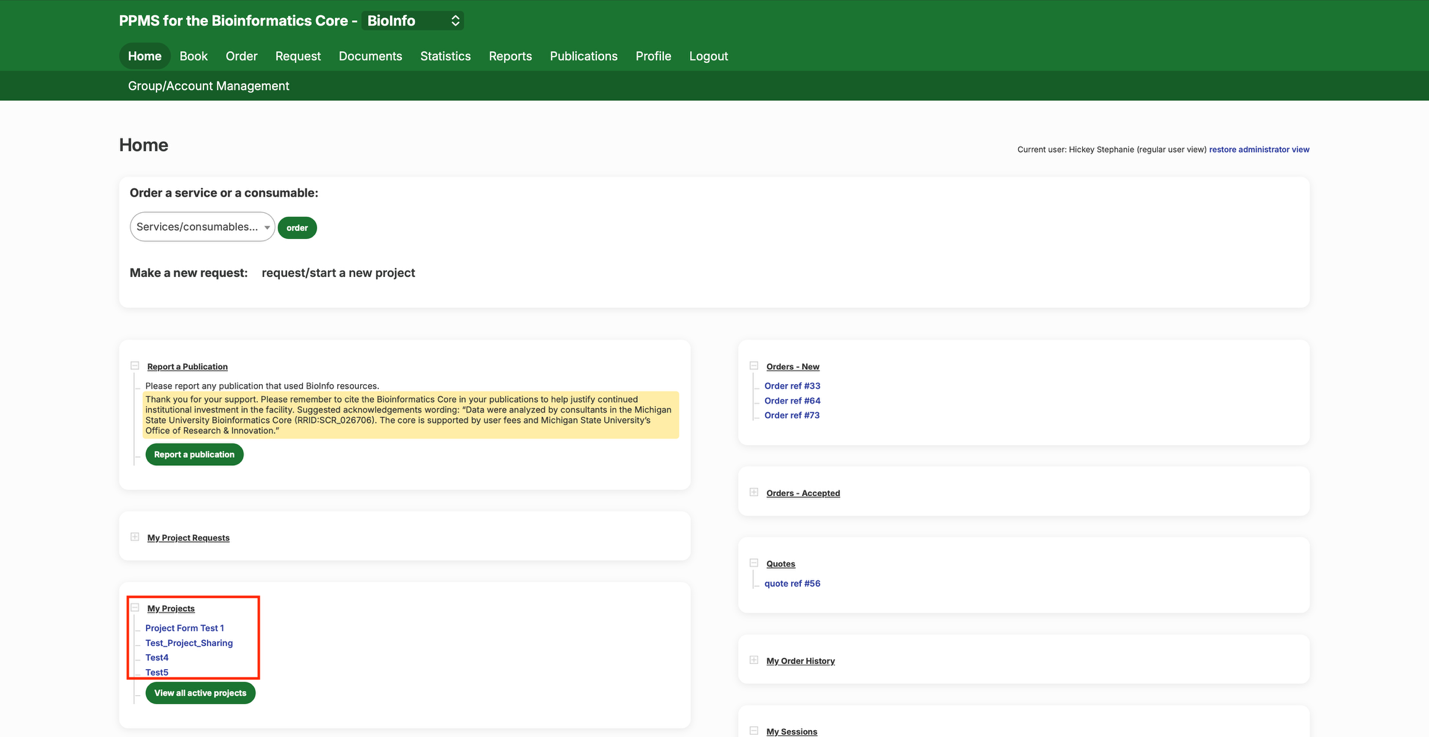
- Select your project from the “My Projects” section of the home page.
- Open the project’s details
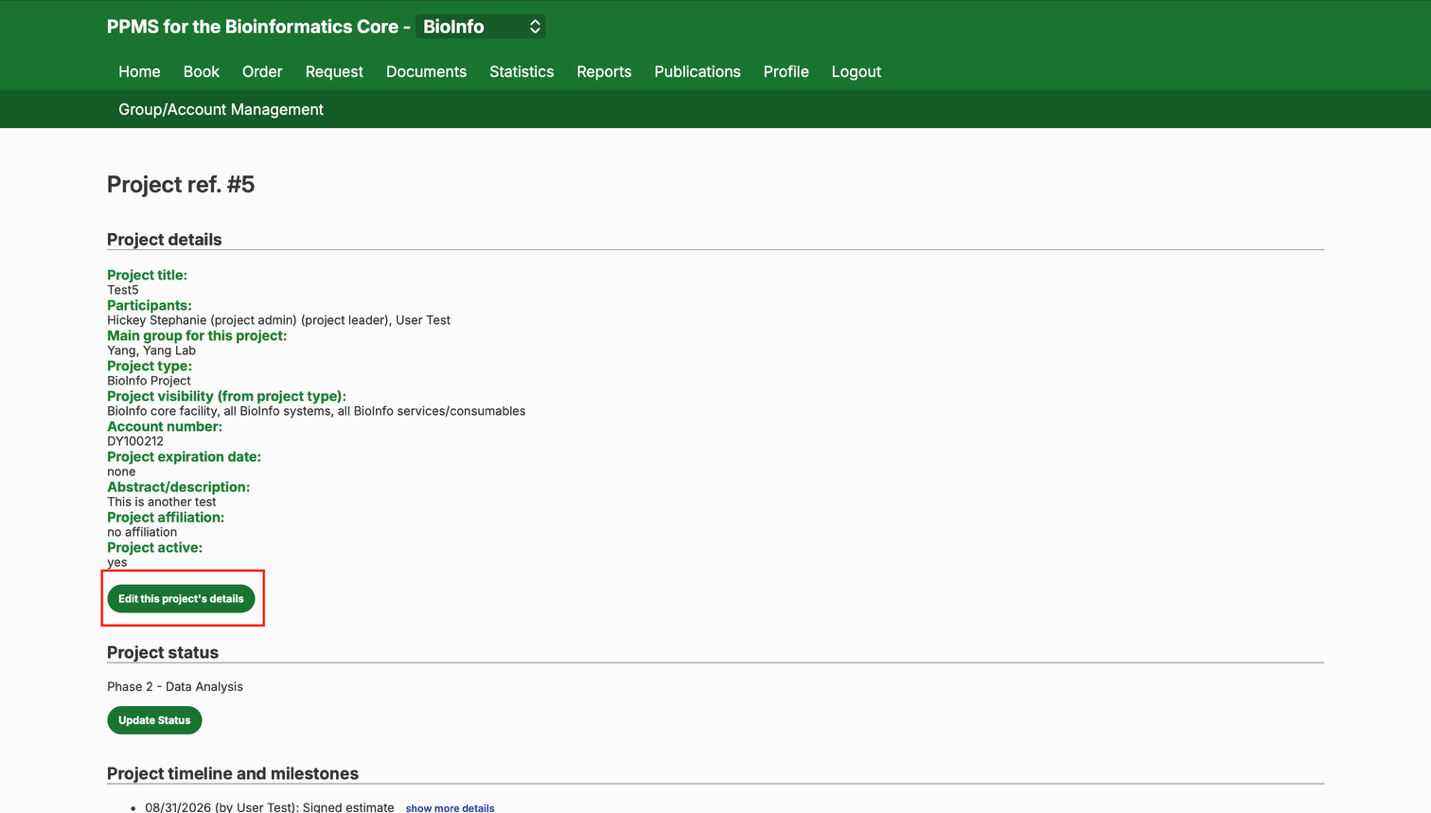
- Once on the project page, click “Edit this project’s details.”
- Find the account number field
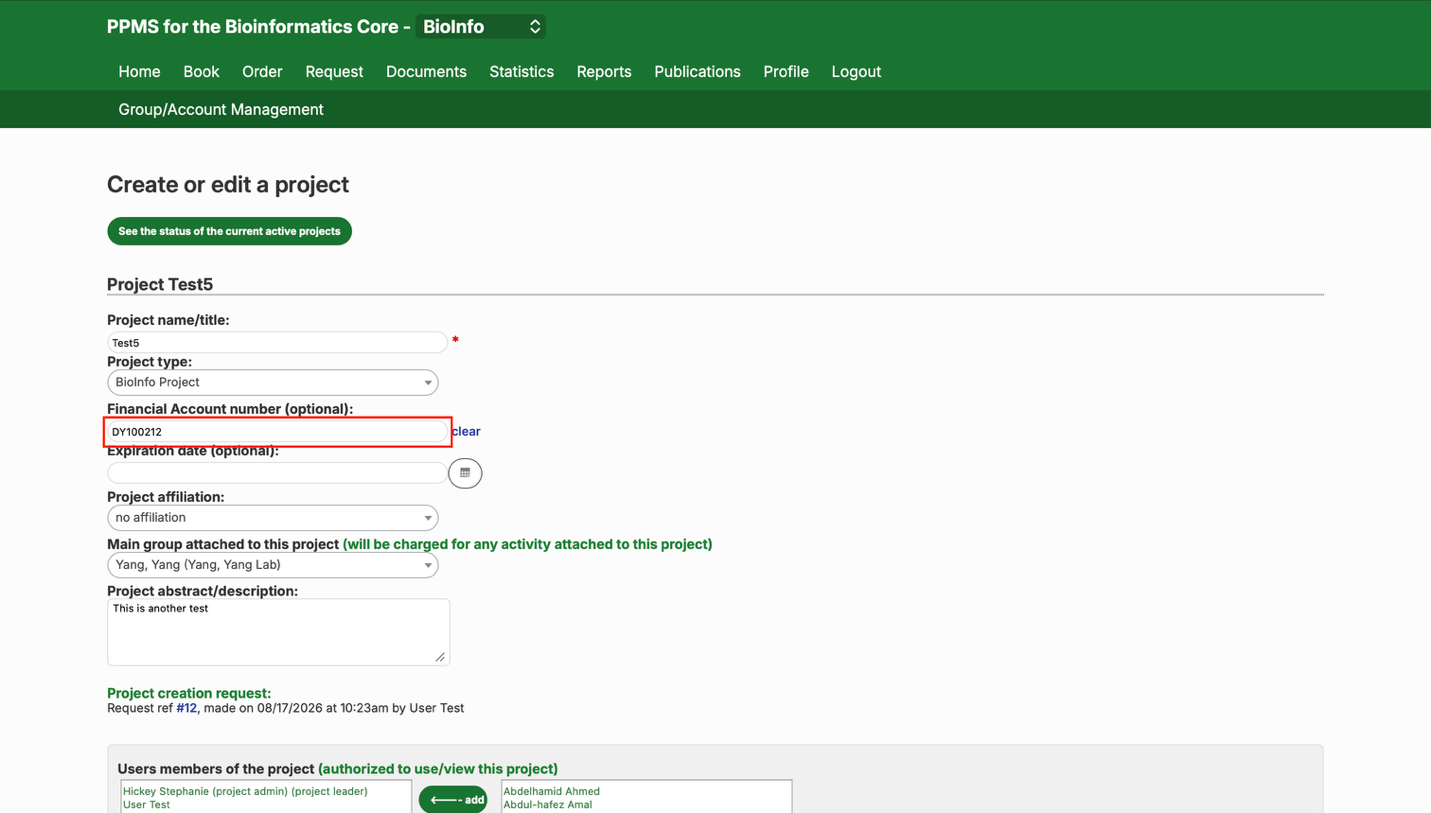
- Click inside the “Financial Account number (optional)” box.
- Select or request an account
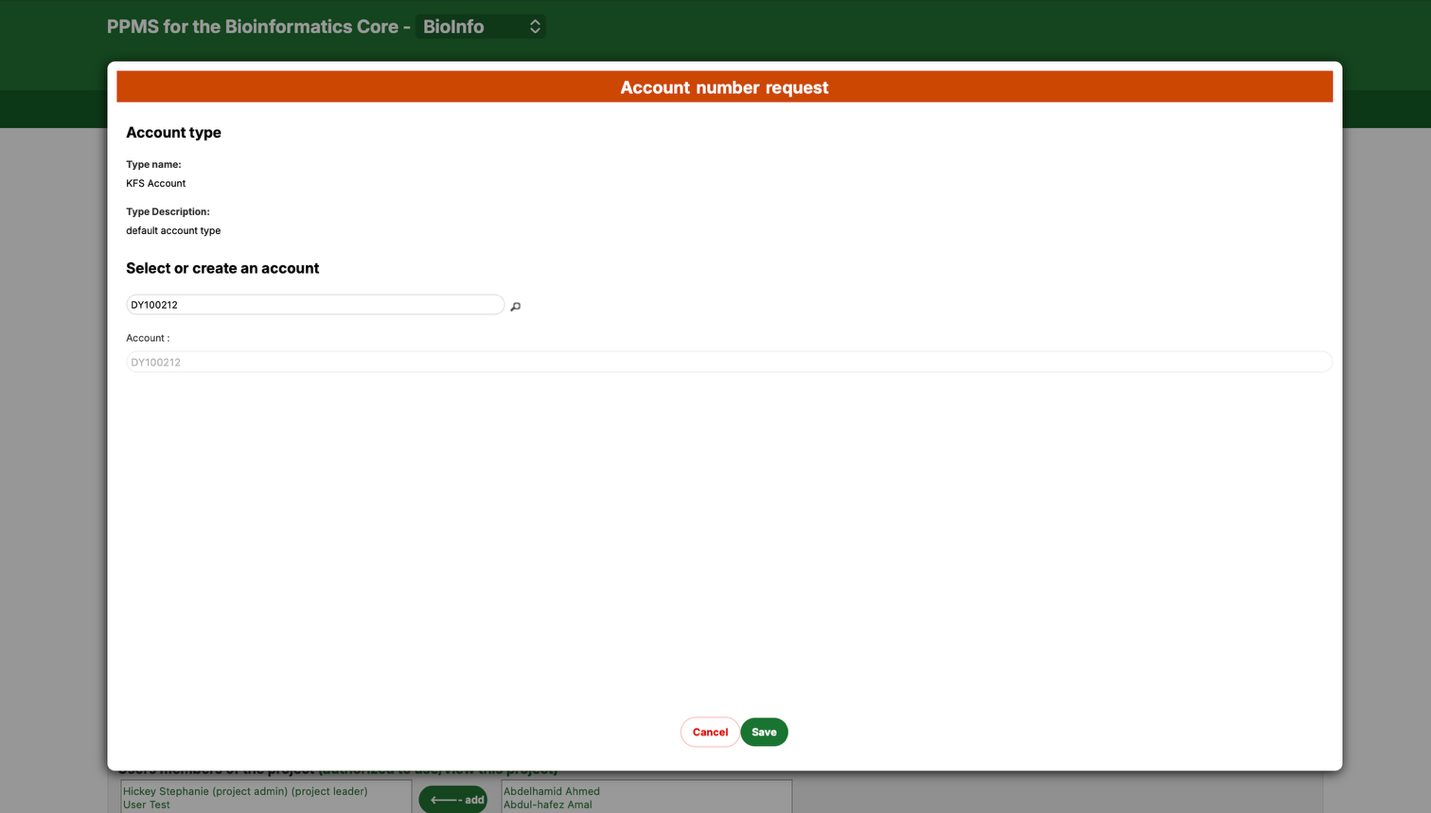
- You’ll see the screen below. You can select an account that already exists in PPMS and that you’re authorized to use. To create a new account, or to request authorization for an existing one, click “Cancel” and see Step 5 below.
- Open your profile
- At the top of the page, click “Profile.”
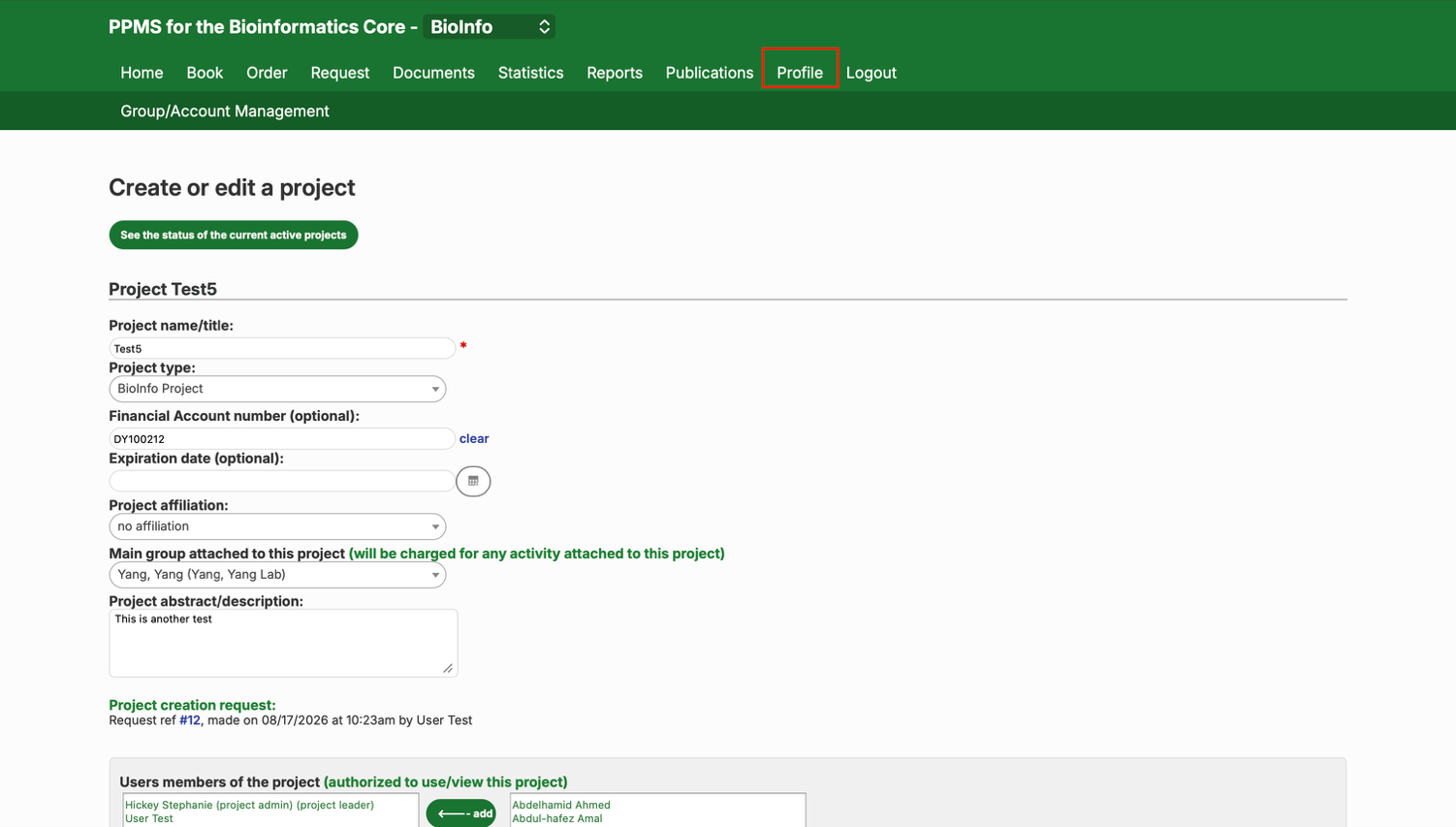
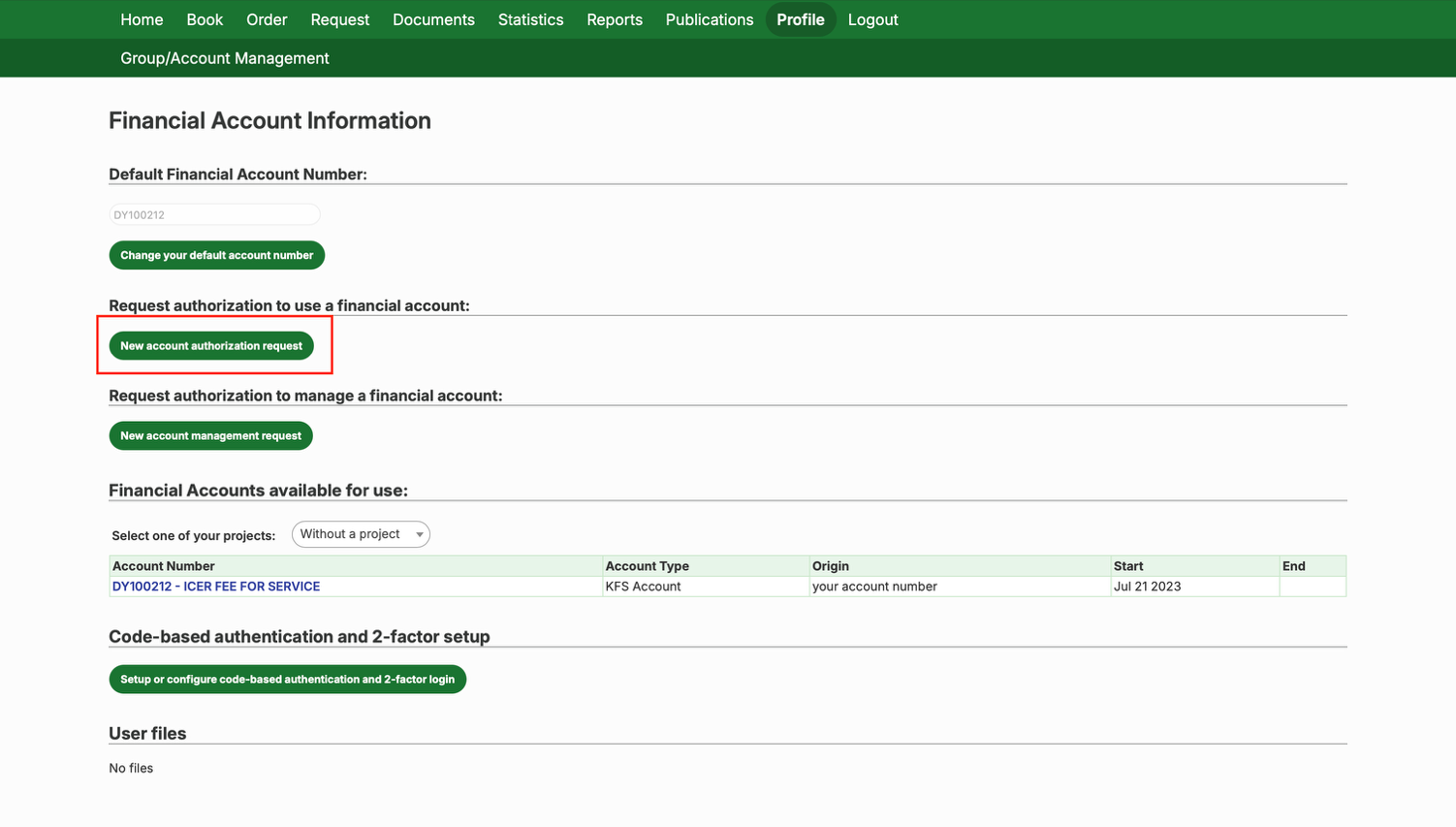
- Request account authorization
- Scroll down to “Financial Account Information” and click “New account authorization request.”
- Add your account
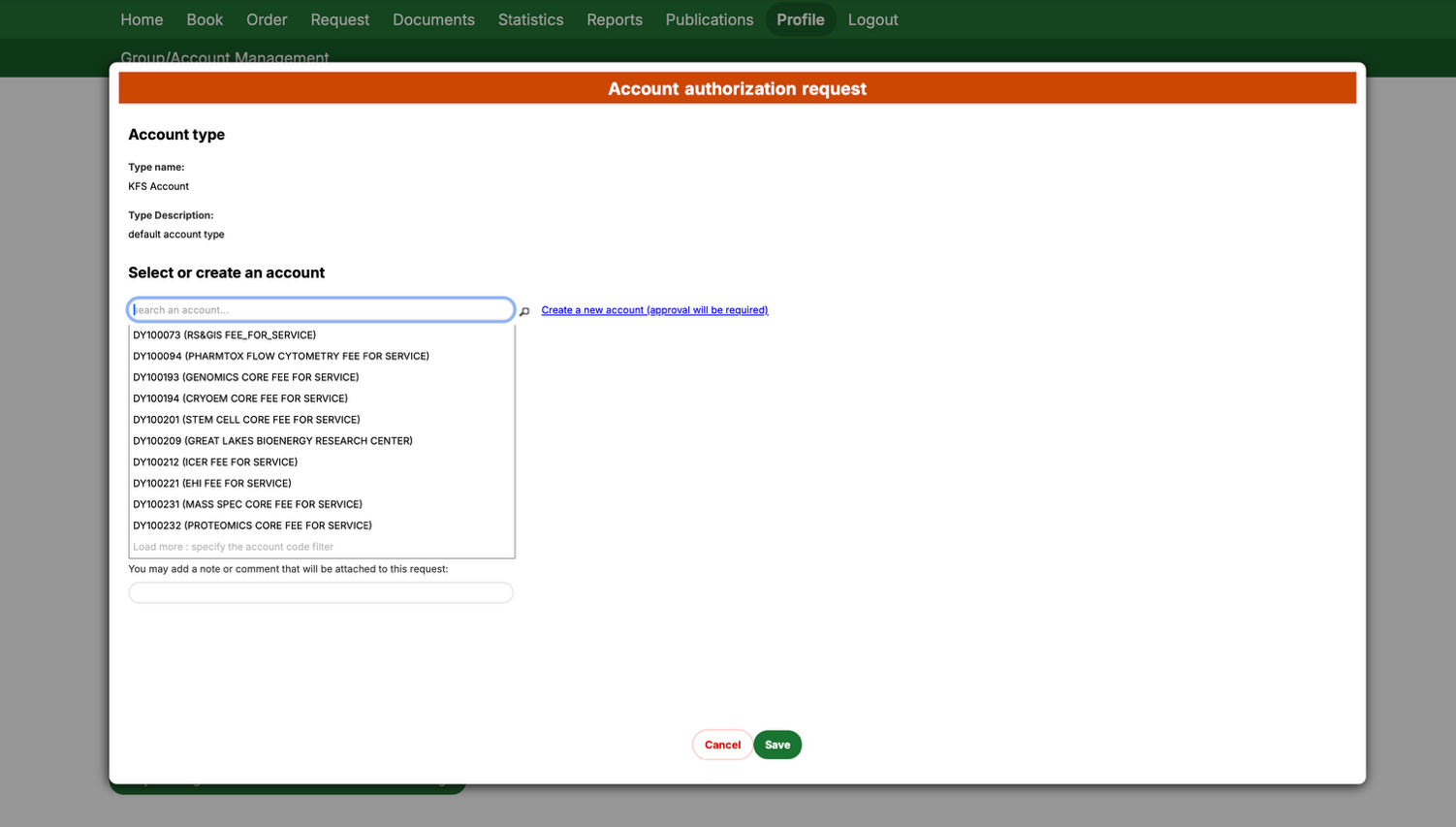
- After clicking “New account authorization request,” you’ll see the screen below. From here you can request authorization for an account that already exists, or create a brand-new one.
To use an existing account:
- Type the account number into the “search an account…” field and select it from the list. Click Save to complete the request.
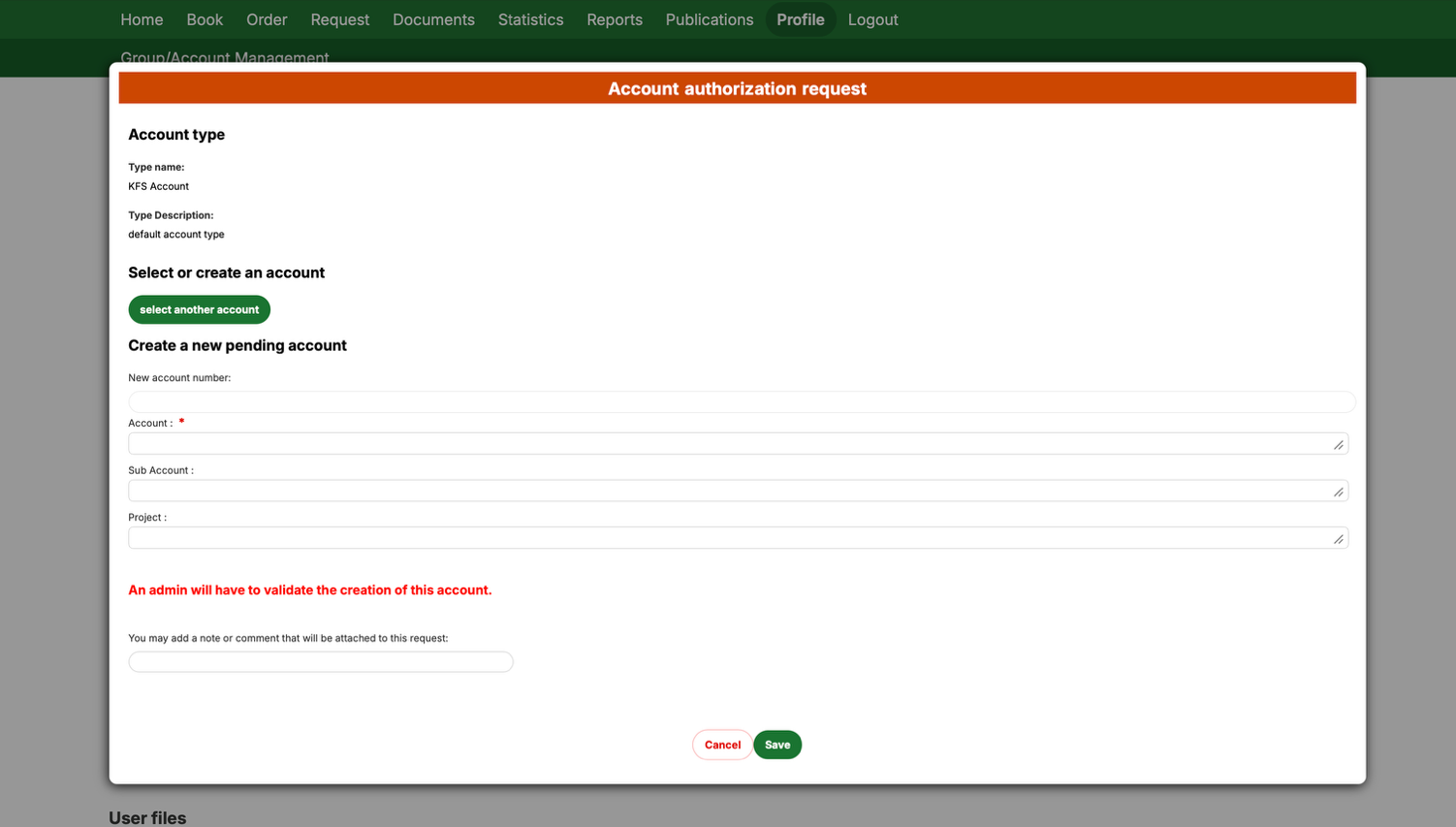
To create a new account:
- Click “Create a new account (approval will be required).” Fill in the new account information on the following screen, then click Save.
- Assign the account to your project
- Once your request is approved, the account still needs to be linked to a project. If you entered a project reference when you submitted the request, PPMS will link it automatically. If not, return to Step 2 and enter the account number in the “Financial Account number” box to assign it directly.
Need help? Message our PPMS help Teams channel or email bioinformatics@msu.edu.